
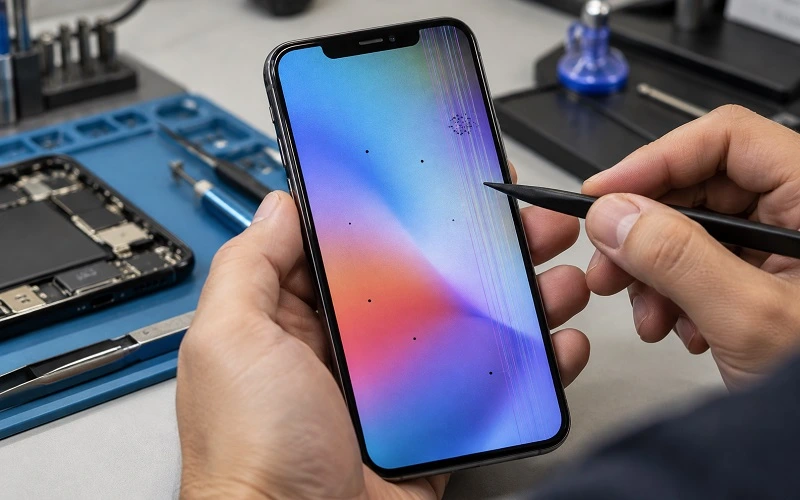
You notice a tiny black dot on your iPhone screen while reading a message or looking at a photo. At first, you think it’s dust or a fingerprint, so you wipe the screen. But the dot doesn’t disappear. It’s still there when you open another app, change the brightness, or restart your phone.
You might be dealing with dead iPhone pixels, although not every black spot means a pixel has permanently stopped working. Some display problems look similar, and understanding what’s actually wrong can help you avoid unnecessary repairs.
Dead pixels can appear on both older and newer iPhones. Sometimes the issue is limited to one tiny spot that barely affects everyday use. In other cases, multiple pixels stop working, or the screen develops larger dark patches that make it difficult to read messages, watch videos, or use apps.
Before deciding whether you need a replacement screen, there are a few simple checks you can perform at home. This guide explains how to identify dead pixels, what causes them, which fixes are worth trying, and when professional iPhone screen repair may be the better option.
Quick Answer: Can Dead iPhone Pixels Be Fixed?
A truly dead iPhone pixel usually cannot be fixed with a restart, software update, or pixel repair app. When a display pixel has physically failed, replacing the screen is generally the practical repair solution. However, some stuck pixels, software glitches, or marks beneath a screen protector can look similar to dead pixels. To check your iPhone, display solid white, black, red, green, and blue backgrounds and look for dots that remain in the same position. If the problem persists across different colors and apps, your screen may have a hardware defect.
If you’re experiencing persistent black spots or other display problems, SellPhoneOrlando offers iPhone repair services in Orlando for supported models.
What Are Dead iPhone Pixels?
Dead iPhone pixels are tiny parts of the display that no longer produce the expected light or color. They typically appear as small black dots that stay in the same location, regardless of what you’re viewing.
Your iPhone screen contains millions of pixels working together to create images, text, videos, and colors. Each pixel contributes a small portion of the picture you see. When one stops functioning properly, it can create a noticeable dot that doesn’t match the surrounding display.
The exact appearance depends on the screen technology. Some older iPhone models use LCD panels, while many newer devices feature OLED displays. Both can develop pixel defects, although the symptoms may differ depending on the technology and type of failure.
One dead pixel usually won’t prevent an iPhone from functioning. You can often continue making calls, sending messages, taking photos, and using apps without any major problems. However, several failed pixels or a growing dark patch may make the screen uncomfortable to use and could indicate more extensive display damage.
It’s also important to understand that not every black spot is a dead pixel. Physical damage, stuck pixels, display discoloration, and debris beneath a screen protector can sometimes create similar symptoms.
Dead Pixels vs. Stuck Pixels: What’s the Difference?
Dead pixels and stuck pixels are often confused because both create unusual spots on an otherwise normal-looking iPhone display. However, identifying the difference can help you determine whether basic troubleshooting might work or whether screen replacement is more likely.
A dead pixel typically appears black because it no longer produces light as expected. A stuck pixel may remain illuminated or display an incorrect color, such as red, green, or blue, even when the surrounding image changes.
| Feature | Dead Pixel | Stuck Pixel |
| Appearance | Usually black | Red, green, blue, or bright |
| Position | Remains fixed | Remains fixed |
| Visibility | Often noticeable on light backgrounds | Varies by background color |
| Chance of recovery | Usually permanent | Sometimes temporary |
| Possible solution | Screen replacement if needed | Troubleshooting or repair |
A genuinely dead pixel is unlikely to recover after restarting the device or installing an update. A stuck pixel may occasionally return to normal, although there is no guaranteed fix.
Before spending money on repairs, checking how the affected spot behaves against different backgrounds is a useful first step.
How to Test for Dead Pixels on an iPhone
You don’t need specialized equipment to perform a basic iPhone dead pixel test. A few simple checks can help you determine whether the problem is part of the screen or something sitting on top of it.
1. Clean Your iPhone Screen
Begin by turning off the display and inspecting the glass under good lighting. Fingerprints, dust, scratches, and particles trapped beneath a screen protector can sometimes resemble defective pixels.
Use a clean, soft, lint-free cloth to remove surface marks. If you have a screen protector, look carefully for trapped dust or bubbles that could explain the unusual spot.
Avoid pressing firmly on the screen while cleaning. If the display is already damaged, excessive pressure may make the problem worse.
2. Open a Plain White Background
A white background makes dark display defects easier to notice. Open a plain white image in Photos or use a webpage with a white background, then adjust the brightness so you can inspect the screen comfortably.
Look closely for tiny black dots that don’t match the surrounding area. Pay particular attention to the location where you first noticed the issue.
If a black spot remains visible against a white background, it may indicate a dead pixel or another display defect. Repeat the test with a light gray image to see whether the appearance changes.
3. Test Different Screen Colors
Testing several solid colors can help identify pixels that aren’t displaying correctly. Open red, green, blue, black, and white images individually and inspect the screen.
A dot that remains black against bright backgrounds may indicate a defective pixel. A bright or colored spot that appears against a black background could suggest a stuck or otherwise malfunctioning pixel.
You can use solid-color images saved on your phone or a reputable browser-based display test. There’s no need to install unfamiliar applications for this basic check.
4. Restart Your iPhone
Restarting your iPhone is worth trying when the problem appears suddenly and there’s no obvious physical damage. Temporary software or graphics issues can sometimes create visual abnormalities that disappear after a restart.
Turn your phone off normally, wait briefly, and switch it back on. Once it restarts, repeat the color test to see whether the spot remains visible.
If the same dot appears in exactly the same position across multiple apps and backgrounds, a physical screen defect becomes more likely. However, restarting alone cannot confirm the exact cause.
5. Take a Screenshot
A screenshot can help distinguish between a display hardware problem and something being rendered incorrectly by an app or software.
Take a screenshot while the unusual spot is visible, then open it on another device. If the spot appears in the screenshot when viewed elsewhere, the problem may be related to the displayed image or software.
If the screenshot looks normal on another screen but the dot remains visible on your iPhone, the issue is more likely associated with the physical display.
This test isn’t a complete diagnosis, but it can help you decide whether further troubleshooting is worthwhile.
What Causes Dead Pixels on an iPhone?
Dead pixels can develop for several reasons. Sometimes the problem is related to the display panel itself, while other cases involve physical damage, pressure, liquid exposure, or deterioration over time.
Manufacturing Defects
An iPhone display contains millions of tiny electronic components. Occasionally, an individual pixel or subpixel may not function correctly because of a manufacturing defect.
This type of issue can appear even on a relatively new device that has never been dropped or exposed to water.
If you notice a pixel defect shortly after purchasing your iPhone, check your warranty status and available service options before paying for a screen replacement.
Accidental Drops and Impacts
Dropping an iPhone can damage the screen even when the outer glass doesn’t crack. The force of an impact may affect the internal display layers, creating dark spots, colored lines, flickering, or areas that no longer display images correctly.
When a black spot appears immediately after a drop, the damage may extend beyond an individual pixel. Larger dark patches can indicate broader damage to the display panel.
If your phone developed screen abnormalities after an impact, an inspection can help determine whether a screen replacement is necessary.
Excessive Pressure on the Screen
Pressure can also damage an iPhone display. Sitting on the phone while it’s in a back pocket, placing heavy objects over it, or bending the device may place stress on the display.
Depending on the severity, pressure-related damage may produce black spots, unusual colors, or other screen abnormalities.
Avoid pressing or rubbing a suspected dead pixel in an attempt to repair it. These methods can damage surrounding display components and make the problem worse.
Liquid Exposure
Although many iPhone models offer water resistance, they are not completely waterproof. Liquid can still enter a device, particularly if its seals have deteriorated or the phone has experienced previous damage.
Liquid exposure may affect display connectors and other internal components, causing flickering, discoloration, black areas, or an unresponsive screen.
These symptoms don’t always indicate dead pixels. If your iPhone’s display begins malfunctioning after liquid exposure, professional inspection is generally more useful than repeated restarts or charging attempts.
Display Aging and Wear
Screen components can change over time, particularly after years of regular use. OLED displays may experience uneven pixel aging, brightness differences, or burn-in.
However, burn-in, image retention, and dead pixels are different issues. Burn-in often appears as a faint outline of content displayed repeatedly, while a dead pixel usually looks like a small, fixed point.
Identifying the type of display problem is important before deciding whether to replace the screen.
Can You Fix Dead iPhone Pixels Without Replacing the Screen?
A truly dead iPhone pixel usually cannot be repaired through software, a restart, or a pixel-fixing app. If the pixel has physically failed, replacing the display is generally the practical repair option. However, some temporary display glitches and stuck pixels may look similar, so it’s worth trying basic troubleshooting before paying for a replacement.
Check for an iOS Update
If the spot appeared suddenly without any physical damage, start by checking whether your iPhone has a pending software update. Open Settings → General → Software Update and review any available updates. Back up your important data before installing a major update.
Software updates can resolve certain graphics-related glitches, but they cannot repair a physically defective pixel. If the same black dot appears in the same location across multiple applications and screen colors, an update is unlikely to make it disappear.
Test Whether the Pixel Is Stuck
Some websites provide rapidly changing color patterns intended to restore stuck pixels. Although certain temporary pixel problems may resolve, there is limited reliable evidence that these methods consistently work, and they cannot repair physically dead pixels.
A basic solid-color test is generally more useful for understanding the issue. Avoid flashing patterns if you’re sensitive to flashing lights. If the defect remains unchanged after normal troubleshooting, repeatedly running pixel-repair animations is unlikely to help.
Avoid Pressure and Heat-Based Fixes
You may find online tutorials recommending rubbing a defective pixel, applying heat, or pressing the screen to make the dot disappear. These methods can be risky, particularly on modern OLED displays, where excess pressure can damage surrounding pixels or internal display layers.
If the black spot remains visible, professional inspection is safer than experimenting with potentially damaging techniques. For local assistance, SellPhoneOrlando provides iPhone repair services in Orlando, including display inspections and screen replacement for supported models.
Can Dead Pixels Spread on an iPhone Screen?
An individual dead pixel does not normally cause nearby pixels to stop working. However, the underlying problem responsible for a display defect may worsen, particularly when the screen has experienced physical damage.
For example, a small black spot that appears after dropping an iPhone might involve internal panel damage rather than a single failed pixel. Over time, additional dark patches, colored lines, or flickering may appear if the underlying damage progresses.
If you’ve had the same tiny black dot for several months and the rest of the display works normally, the defect may remain stable. However, growing dark areas, additional lines, or changes in screen responsiveness can indicate more extensive damage that deserves inspection. Taking a photograph of the display with another device can help you compare the affected area over time.
Can You Still Use an iPhone With Dead Pixels?
An iPhone with one or two dead pixels may continue working normally, especially when the defects are small and located away from the center of the screen. You may barely notice them while browsing websites, reading messages, or making calls because an individual defective pixel doesn’t automatically affect the phone’s other components.
Whether you should continue using the device depends on how much the problem affects your daily activities and whether other symptoms are present. A small, stable dot is quite different from a growing black patch, flickering display, or touchscreen that occasionally stops responding.
If the defect begins interfering with reading, watching videos, or using essential apps, replacing the display may be worth considering. It is also sensible to back up your important information using iCloud or a computer, particularly when the display shows signs of deterioration. A recent backup can protect your photos, contacts, and other files if the screen eventually becomes difficult to operate.
Should You Repair or Sell an iPhone With Dead Pixels?
Deciding whether to repair or sell an iPhone with dead pixels often depends on the phone’s age, overall condition, and the estimated repair cost. If you have a relatively recent iPhone with good battery health and no other significant problems, replacing the screen may be worthwhile because you can continue using the device rather than paying for a new one.
For an older model, the decision can be more complicated. If the battery drains quickly, the device already has cosmetic damage, or you’re planning to upgrade soon, the cost of replacing the display may not be justified. It’s worth comparing the repair estimate with the phone’s current resale value before spending money.
You should also consider whether repairing the screen would significantly increase the device’s selling price. Sometimes the difference between the value of a damaged iPhone and a repaired one is smaller than the cost of replacing the display.
If you’d rather upgrade than repair your phone, you may still be able to sell it in its current condition. SellPhoneOrlando evaluates eligible used and damaged iPhones based on factors including model, storage, functionality, physical condition, carrier status, and resale demand.
You can sell your damaged iPhone in Orlando through an in-person evaluation and review the offer before deciding whether to proceed. This gives you the opportunity to compare selling the device as-is with paying for a replacement screen.
How Much Does It Cost to Fix Dead Pixels on an iPhone?
The cost of repairing dead iPhone pixels depends on the model, display type, and extent of the problem. When a pixel has physically failed, replacing the display assembly is generally the practical repair solution rather than replacing an individual pixel.
Different iPhone generations use different display technologies and replacement components. An older LCD-based iPhone may have different repair requirements from a newer model with an OLED display. Prices also depend on replacement-part availability, labor, and whether additional damage is discovered during inspection.
Before agreeing to repair, ask whether the quoted price includes parts and labor, what type of replacement screen will be installed, and whether the work includes a warranty. Understanding these details can help you compare repair options and avoid unexpected costs.
For iPhone owners in Orlando, SellPhoneOrlando offers mobile phone screen repair and provides a repair quote after evaluating the device. This allows you to make a decision based on the actual screen condition rather than assuming every black spot requires the same repair.
How to Prevent iPhone Screen Damage and Pixel Problems
Not every dead pixel can be prevented because manufacturing-related defects and component wear can occur even when a phone is handled carefully. However, protecting your iPhone from accidental damage can reduce the risk of screen-related problems.
Use a Protective Case and Screen Protector
A protective case with raised edges can help reduce the impact of some accidental drops. A screen protector adds another layer of protection against scratches and minor surface damage, although neither accessory can guarantee that the internal display will remain undamaged after a strong impact.
Choose accessories designed for your specific iPhone model, and replace damaged screen protectors when necessary. Keeping the glass clean also makes it easier to identify any new marks or defects.
Avoid Excessive Pressure on the Display
Try not to carry your iPhone in a position where it may bend or become compressed. Sitting on your phone while it’s in your back pocket or placing heavy objects over it can put unnecessary stress on the display, even when the external glass doesn’t crack.
It’s also important to avoid pressing on an existing black spot to see whether it changes. If the display has already developed a defect, additional pressure may make the damage worse.
Protect Your iPhone From Heat and Liquid
Extreme heat can affect electronic devices, so avoid leaving your iPhone inside a hot vehicle or exposing it to direct heat sources for extended periods. Although many iPhone models have water-resistance ratings, these protections are not permanent and can weaken over time.
If your screen develops dark spots, flickering, unusual colors, or touch problems after an accident, investigate the issue rather than assuming it will resolve on its own. Early inspection can help you understand whether the damage is limited to the screen or involves additional components.
Where to Get iPhone Screen Repair in Orlando
If you’ve tested your iPhone using different screen colors, restarted the device, and confirmed that the same black spot remains visible, professional inspection may be the next reasonable step. A technician can examine the display and determine whether the symptoms are consistent with pixel failure or another type of screen damage.
SellPhoneOrlando provides iPhone screen repair and replacement services in Orlando for supported models. The repair service covers problems such as black spots, display lines, flickering, cracked screens, and touchscreen issues. The store also provides inspection and pricing information before beginning approved repairs.
You can visit 6327 S Orange Ave, Orlando, FL 32809, or call (407) 334-2844 to discuss your screen problem and check available repair options.
If replacing the screen doesn’t make financial sense, you can also request an offer for your current iPhone rather than repairing it before upgrading.
Frequently Asked Questions About Dead iPhone Pixels
Can dead iPhone pixels be fixed?
A truly dead iPhone pixel usually cannot be restored through software or basic troubleshooting. If the display component has physically failed, replacing the screen is generally the practical solution when repair is necessary. However, stuck pixels and temporary display problems may behave differently, so testing the screen first is important.
How do I know if my iPhone has dead pixels?
Open solid white, black, red, green, and blue images and inspect the screen for dots that remain in the same position. A black dot that stays visible across different backgrounds and apps may indicate a defective pixel or another physical display problem.
Can dead iPhone pixels disappear on their own?
A genuinely dead pixel is unlikely to recover on its own because the affected display component has stopped functioning. Temporary graphics issues or stuck pixels may occasionally disappear, but there is no reliable method for restoring a physically dead pixel.
Will restarting my iPhone fix dead pixels?
Restarting may resolve temporary software or display glitches, but it cannot repair a physically damaged pixel. If the same black dot remains visible after restarting and appears across different screen colors, the problem is more likely related to display hardware.
Can dead pixels spread across an iPhone screen?
An isolated dead pixel doesn’t normally cause neighboring pixels to fail. However, if the display has suffered physical damage, the affected area may worsen over time. Growing dark patches, additional colored lines, or flickering may indicate more extensive screen damage.
Is it safe to use an iPhone with one dead pixel?
An iPhone with one stable dead pixel can often continue working normally if the rest of the screen and device function properly. If the defect grows, affects touchscreen responsiveness, or appears alongside flickering and other display abnormalities, professional inspection is advisable.
Is it worth replacing an iPhone screen for one dead pixel?
Replacing a screen for one dead pixel depends on how noticeable the defect is, the age of the phone, and the repair price. A small dot near the edge may not justify replacement, while a defect in the center of the display could be distracting enough to make repair worthwhile.
Can I sell an iPhone with dead pixels in Orlando?
Yes, an iPhone with dead pixels may still have resale value depending on its model, physical condition, and functionality. SellPhoneOrlando evaluates eligible used and damaged devices, allowing you to request an offer for your iPhone in Orlando without necessarily repairing the screen first.
Where can I get dead pixels on my iPhone checked in Orlando?
SellPhoneOrlando provides iPhone repair services at 6327 S Orange Ave, Orlando, FL 32809. You can bring in a supported model for an inspection and receive information about available screen repair or replacement options.
Final Thoughts
Dead iPhone pixels can be frustrating, especially when a tiny black dot becomes noticeable every time you open a photo, read a message, or watch a video. Fortunately, not every unusual spot means the entire display needs replacing, and several simple checks can help you understand the problem before paying for repair.
Start by cleaning the screen, inspecting the screen protector, testing different background colors, and restarting your iPhone. If the same spot remains visible, consider how much it affects your daily use and whether replacing the screen makes financial sense for your particular model.
For newer iPhones with otherwise healthy components, screen replacement may be a practical investment. For older or heavily damaged devices, selling the phone in its current condition could be a better option, particularly if you’re already planning to upgrade.
Need Help With Dead iPhone Pixels in Orlando?
If black spots, dead pixels, or other display issues are affecting your iPhone, visit SellPhoneOrlando to explore your options. Have your phone inspected for repair or request an offer if you’d rather sell your damaged device.